

Sharing memories has never been easier, especially when you’ve got an iPhone in your pocket. Imagine effortlessly creating a digital scrapbook with friends and family, all while avoiding the chaos of a group chat filled with blurry photos. With shared albums, you can curate your favorite moments and let others join in on the fun.
Understanding Shared Albums
Shared albums on iPhone allow users to create collaborative spaces for collecting photos and videos with others. These albums serve as a digital storage solution for precious memories.
What Is a Shared Album?
A shared album is a feature within the Photos app that enables users to invite others to view and contribute to a collection of images and videos. Users can create an album, add content, and select contacts to receive invitations. Family members and friends can share their own photos directly to the album, making it a communal experience. Visibility settings can be adjusted, ensuring privacy or allowing open access for all invited participants.
Benefits of Shared Albums
Shared albums offer several advantages for users looking to preserve memories. Users can keep all their photos in one place, simplifying access and organization. Collaboration allows for different perspectives, enhancing the narrative of an event. Notifications inform users of new contributions, maintaining engagement. The ability to comment on photos fosters interaction among participants. Those seeking to share individual experiences can do so without cluttering personal photo libraries.
Setting Up a Shared Album on iPhone
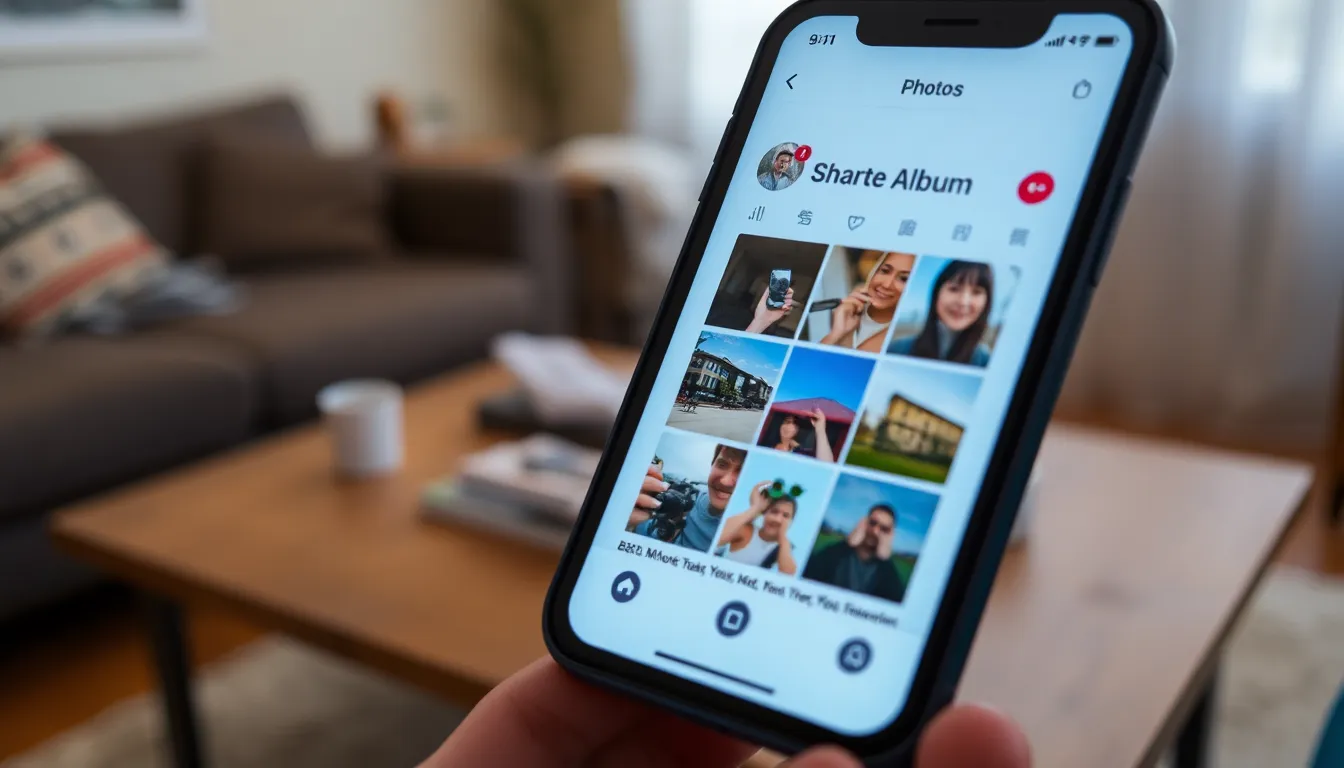
Creating a shared album on an iPhone involves a few straightforward steps, allowing users to easily collaborate with others. Follow these guidelines to set up your album seamlessly.
Step-by-Step Guide
- Open the Photos app on the iPhone.
- Select the “Albums” tab at the bottom of the screen.
- Tap on the “+” icon and choose “New Shared Album.”
- Name the album and tap “Next.”
- Invite friends and family by entering their email addresses or selecting contacts.
- Click “Create” to finalize the shared album setup.
All invited members can now view and add photos, making it a collaborative space for sharing memories.
Important Settings to Consider
Privacy settings play a crucial role in shared albums. Adjust visibility options to limit access to invited participants only. Notifications can also be customized, ensuring users receive alerts about new additions and comments. Consider enabling or disabling “Public Website” if you want to control album visibility beyond invited members. Regularly review who has access and maintain privacy as needed to protect personal memories while enjoying collaboration.
Adding Photos and Videos
Adding photos and videos to a shared album on an iPhone offers a simple way to enhance collaborative memory-making. Users can easily share moments with close friends and family.
How to Add Content to Your Album
Open the Photos app, then select the shared album you want to enhance. Tap the plus icon to add new content, which opens your photo library. Choose the desired photos and videos. Once selections are made, tap the Done button to upload them effortlessly. Notifications inform participants of the new additions, allowing everyone to stay updated.
Managing Existing Content
Users can manage existing content in shared albums to keep memories organized. Open the shared album and select a photo or video to edit. Options include removing items or adding comments to enhance the context. Participants can also reorder photos by tapping and dragging them to preferred positions. Regularly updating and reviewing content ensures the album remains a vibrant collection of shared memories.
Inviting People to Your Shared Album
Inviting others to a shared album enhances the collaborative experience. Users can easily include family and friends in their digital scrapbook adventures.
How to Invite Others
To invite others, open the shared album within the Photos app. Tap the “People” icon located at the top right corner. Select “Invite People” and choose contacts from the address book. Users can also enter email addresses manually if needed. After selecting invitees, tap “Add” to send invitations. Notifications inform invited participants of their access, allowing them to view and contribute memories easily.
Customizing Invitee Permissions
Customizing invitee permissions is essential for maintaining control. In the same “People” section, users will see options to enable or disable “Allow Subscribers to Post.” Enabling this option grants invitees the ability to add photos and comments. On the other hand, disabling it keeps the album contributions limited to the album creator. Users can also remove individuals from the album anytime, ensuring privacy and security while sharing cherished moments.
Managing and Deleting Shared Albums
Managing shared albums on an iPhone involves simple steps to ensure content remains organized and accessible. Users can easily adjust permissions, remove unwanted contributions, or reorder photos.
How to Manage Your Shared Album
Access the shared album through the Photos app to manage it effectively. Select the album and tap on the “People” icon to adjust invitees’ permissions, allowing or restricting photo and comment contributions. Users can edit titles and descriptions, ensuring clarity for all participants. Removing or reordering photos is straightforward; just tap on an image, then select “Remove” or drag to rearrange. Regularly checking for new contributions helps maintain engagement among invitees.
Steps to Delete a Shared Album
Deleting a shared album requires a few specific steps for clarity. Navigate to the desired album in the Photos app and tap “Edit.” Then select “Delete Album” and confirm the action. This process removes the album from all participants’ devices, ensuring privacy. Users can also choose to leave a shared album without deleting it, maintaining personal access while removing shared visibility.
Creating shared albums on an iPhone transforms how users capture and cherish memories with loved ones. This feature not only streamlines the sharing process but also enhances collaboration by allowing participants to contribute their own photos and comments. With the ability to manage privacy settings and permissions, users can enjoy a secure environment for their cherished moments.
Regular updates and engagement keep these albums lively and meaningful. Whether it’s a family vacation or a special event, shared albums offer a wonderful way to relive experiences together. Embracing this feature makes memory sharing enjoyable and organized, ensuring that precious moments are preserved for everyone to enjoy.


